How To Adjust The Opacity Of An Image: Creating Transparency In OBS Studio

Updated: Aug 25
How To Make An Image / Source Transparent in OBS Studio

How to Adjust Opacity in OBS Studio (Step-by-Step)
If you’re streaming, recording, or building a scene in OBS Studio, you’ll eventually run into a moment where something feels too loud visually. Maybe your overlay is blocking gameplay, your webcam frame is too heavy, or an image just needs to “fade into the background” instead of sitting there like it owns the place. This is where adjusting image opacity comes in.
Good news: OBS lets you control transparency (opacity) directly using built-in filters. No plugins, no chaos, just a few clicks.
Let’s break it down.
Step 1: Select Your Source
Open OBS Studio and look at your Sources panel.
Find the image, video, overlay, or media source you want to adjust.
Right-click it.
This opens the source control menu where all the magic lives.
Step 2: Open the Filters Panel
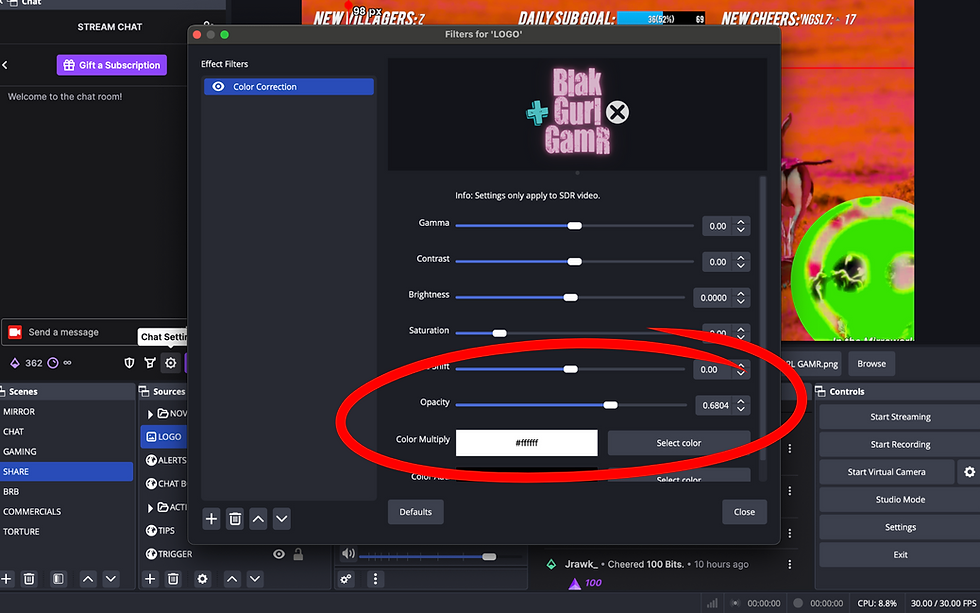
From the menu, click Filters.
A new window will pop up labeled something like:
“Filters for [Your Source Name]”
This is where OBS lets you stack visual effects like seasoning on a dish. You can blur, color-correct, mask, and in this case… fade things into ghost mode.

Step 3: Add a Color Correction Filter
Inside the Filters window, look at the bottom-left area.
Click the plus (+) button under “Effect Filters.”
A list of options will appear.

Choose:Color Correction
This filter is the key because it includes an opacity control that affects the entire source.

Step 4: Adjust the Opacity Slider
Once Color Correction is added, you’ll see a set of sliders appear.
Look for Opacity.
Now drag the slider left or right depending on your goal:
100% = fully visible, solid
50% = semi-transparent, softer presence
0% = completely invisible (use carefully, it disappears from the scene)
As you adjust it, you’ll see your source change in real time inside the preview window.
This is your “fade dial,” letting you decide how strongly the element exists in your scene.

Pro Tip: Transparency is easier to fine-tune when you're looking at an accurate display. If your monitor has poor color or contrast, an overlay that looks subtle to you may appear too dark or too bright to everyone else. A color-accurate creator monitor helps you make more confident adjustments so your scenes look consistent across different devices and screens.
Affiliate Disclosure: I may earn a commission from qualifying purchases.
Bonus Tips (Because OBS Loves a Good Upgrade)
1. Use opacity for layering, not just hiding
Lower opacity is perfect for:
Background overlays behind webcams
Subtle branding elements
Watermarking content without distracting viewers
2. Combine with blur or color tweaks
If you want a more professional look, stack filters:
Slight blur for depth
Reduced opacity for softness
Color correction for mood
This is how stream layouts start feeling like “broadcast-level” setups instead of cluttered desktops.
3. Don’t forget per-source control
Opacity changes only affect the selected source. That means you can make your webcam full strength while your overlay floats faintly behind it like a neon ghost.

Pro Tip: Before spending too much time tweaking filters, take a look at your lighting. Even a simple LED key light can dramatically improve your webcam image, which means you'll rely less on color correction and opacity tricks to get a polished, professional look. Great lighting gives OBS a much better starting point.
Click here to check the price on Amazon.
Affiliate Disclosure: I may earn a commission from qualifying purchases.
Common Mistake to Avoid
If your source suddenly disappears after adjusting opacity, don’t panic.
Check:
You didn’t drag opacity to 0%
You applied the filter to the correct source (not a different layer)
The source isn’t hidden in the Sources panel
OBS doesn’t break easily. It just gets misunderstood.
Opacity control is one of those small OBS tools that quietly upgrades your entire stream aesthetic. It’s not flashy on its own, but in the right hands, it turns rigid layouts into something cinematic and intentional.
Once you get comfortable with it, you’ll start thinking in layers instead of blocks.
Turn OBS Into a Creative Tool Instead of a Roadblock!


Comments