Fixing Audio Delay & Latency in OBS: A Comprehensive Guide to Syncing Your Sound and Video

Updated: Aug 23
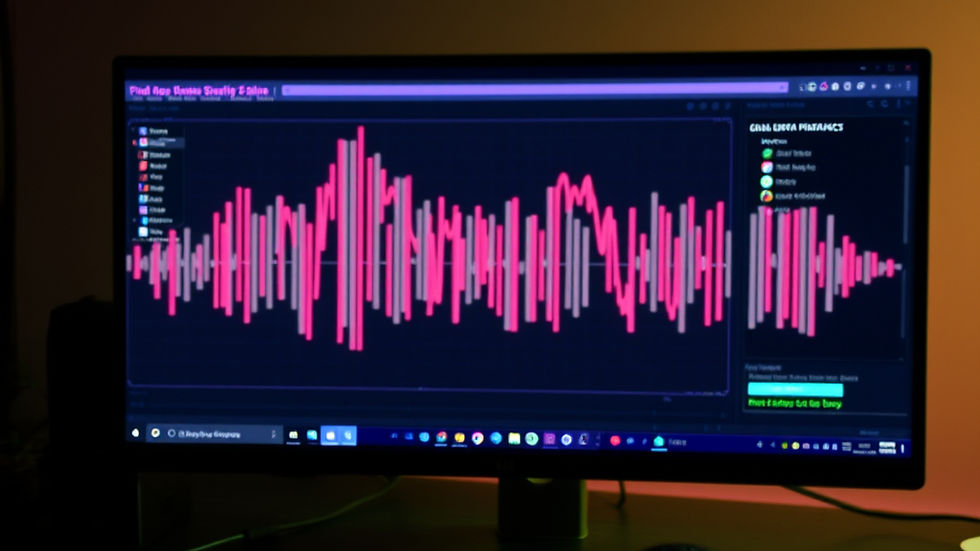
Identifying Which OBS Audio Source Is Delayed
Before changing any settings, you need to find out which audio source is causing the delay. OBS can handle multiple audio inputs like microphones, desktop audio, game capture, and capture cards. Each source can have its own delay.
Here’s a quick way to test:
Clap once on camera while watching the OBS preview.
Listen carefully to when the sound hits compared to the visual clap.
If the sound arrives after the visual, that audio source is the one that needs adjustment.
For example, if your microphone audio arrives late, your voice will sound behind your lip movements. If your game audio is delayed, the sound effects won’t match the on-screen action. Desktop audio delays can make everything feel off.
Knowing exactly which source is late saves time and prevents unnecessary changes to other settings.
Using a capture card for console or gameplay streaming?
Your capture hardware can sometimes be the source of audio and video sync issues. The Elgato HD60 X is a popular option for streamers because it works smoothly with OBS, supports high-quality passthrough, and is designed to reduce common capture problems. If you're troubleshooting latency caused by your capture setup, it's worth checking your hardware alongside your OBS settings.
Click here to Check the current price on Amazon.
Using Sync Offset to Fix OBS Audio Delay
Once you know which audio source is late, the main tool to fix it is the Sync Offset setting in OBS. This setting delays or advances audio by a specific number of milliseconds to line it up with video.

Here’s how to adjust it:
Open Settings in OBS.
Go to the Audio tab.
Click Advanced to see all audio sources.
Find the audio source that is late.
Add a Sync Offset value in milliseconds.
Recommended Starting Points
USB microphones or audio interfaces: Start with 100 to 250 ms.
Capture card audio: Start with 150 to 300 ms.
Using a USB microphone? If you're still shopping for one, the Elgato Wave:3 is a solid choice for streamers because it delivers excellent audio quality, is easy to set up, and works well with OBS. If you're upgrading your setup or replacing an older microphone, it's worth checking out before you buy.
Click here to check the current price on Amazon.
Increase or decrease the value in small steps until your audio matches the video perfectly. Think of it like locking in a DJ beatmatch — the goal is to have your lips and sound line up cleanly.
Note* : Adding milliseconds LOWERS latency and subtracting milliseconds INCREASES latency.

Avoiding Monitoring Delay and Echoes
Sometimes the problem isn’t just sync but also hearing delayed audio while monitoring. This happens when you listen to your audio through OBS and your hardware at the same time, causing an echo or phantom delay.

To fix this:
Open Advanced Audio Properties in OBS.
Check the Audio Monitoring settings for each source.
For most sources, set monitoring to Off.
If you need monitoring, choose only one system: either OBS or your hardware, not both.
Double-monitoring creates a delay that makes it feel like everything is broken, even when the sync is correct.
***Using headphones for monitoring? A good pair of closed-back headphones can help you catch audio issues without introducing outside noise or creating feedback problems. The Audio-Technica ATH-M20x is a reliable budget-friendly option for creators who want accurate monitoring while recording or streaming.
Click here to check the current price on Amazon.
***Affiliate disclosure: As an Amazon Associate, I may earn from qualifying purchases.***
Matching Sample Rates to Prevent Drift
Sample rate mismatches between devices can cause sync issues that get worse over time. OBS and your audio devices need to use the same sample rate to keep audio stable.
To check and set the sample rate in OBS:
Go to Settings.
Select the Audio tab.
Set the sample rate to 48 kHz.
This is the standard for streaming and capture cards. Make sure your audio interface or capture card is also set to 48 kHz in its own control panel. Mismatched sample rates cause audio to slowly drift out of sync, which is harder to fix with just Sync Offset.
Additional Tips for Reducing Audio Latency
Use direct USB connections for microphones instead of hubs to reduce delay.
Close unnecessary background applications that might interfere with audio processing.
Update your audio drivers and OBS to the latest versions.
Test your setup regularly by recording short clips and checking sync.
If using multiple audio devices, try to keep them on the same USB controller to reduce timing issues.
When to Use External Audio Tools
If you still experience latency after adjusting OBS settings, consider using external audio software like Voicemeeter or ASIO drivers. These tools offer more precise control over audio routing and latency compensation.
For example, Voicemeeter lets you add delay to specific audio inputs before they reach OBS, which can help when hardware or driver delays are inconsistent.
Summary
Audio latency in OBS can disrupt your streaming or recording, but most issues come down to a few common causes:
Identifying which audio source is late by clapping on camera.
Using Sync Offset in OBS to adjust timing in milliseconds.
Avoiding double-monitoring to prevent echoes and phantom delays.
Matching sample rates across devices to stop audio drift.
Keeping your hardware and software updated and well configured.
By following these steps, you can get your audio and video perfectly synced, creating a smooth and professional experience for your audience. Start by testing your sources, then adjust Sync Offset carefully, and check your monitoring settings. With a little patience, your sound will no longer show up late to the party.
Create Streams That Feel Intentional
Your stream setup shouldn’t feel harder than the content itself. OBS Studio Mastery helps simplify the process so you can spend less time troubleshooting and more time creating.


Comments