Should You Update OBS? Why Streamers Are Afraid to Update OBS Studio

Updated: Sep 7

Should You Update OBS? Why Streamers Are Afraid to Update OBS Studio
There is a funny little piece of streamer folklore that gets passed around about OBS Studio: if your OBS is working, don't touch it.
I've heard streamers say they never update OBS, and I've talked about it with people I've taught OBS to. I understand where the fear comes from. Once you've spent hours building scenes, configuring audio, installing plugins, setting up alerts and getting everything exactly how you want it, the last thing you want is an update knocking something sideways.
And yes, that can happen. Plugins can become incompatible, settings can behave differently and something that worked yesterday can suddenly need troubleshooting.
But personally, I update OBS regularly and usually don't have a problem. My rule isn't "never update OBS." It's much simpler:
Don't update OBS five minutes before you're supposed to go live.
Give yourself time to test everything afterward and prepare your setup so you have a way back if something does break.
Should I Update OBS? Is It Safe?
Generally, yes. You should keep OBS Studio reasonably up to date.
That doesn't mean installing every update the second it appears. If your setup is stable and you're about to stream, record something important or work on a deadline, there's no reason to introduce another variable at that moment.
But staying several versions behind forever isn't necessarily safer either. OBS exists inside an ecosystem that constantly changes. Operating systems, graphics drivers, streaming platforms, hardware and plugins all receive updates of their own. OBS updates can include bug fixes, security fixes, compatibility improvements and support for those changes.
The safest approach is to treat an OBS update like maintenance, not an emergency.
Will Updating OBS Break My Plugins?
It can, and this is probably one of the biggest reasons behind the "never update OBS" reputation.
Third-party plugins have to remain compatible with OBS, your operating system and sometimes your computer's architecture. Major OBS changes can require plugin developers to update their software too.
The more customized your OBS installation is, the more cautious you should be.
Before a major update, check the plugins your workflow actually depends on. A filter you occasionally use being temporarily unavailable is one thing. A plugin responsible for a major part of your production is another.
This is also why I wouldn't update OBS immediately before a stream. Give yourself enough time afterward to open your important scenes, check your audio and sources, test your plugins and make a short recording or test stream.
If a new release has a documented problem that specifically affects your setup, waiting for a patch or plugin update is perfectly reasonable.
Waiting intentionally is different from never updating OBS at all.
How Do I Back Up OBS Before Updating?
Before a major update, protect the parts of OBS that would be painful to rebuild.
OBS separates Scene Collections from Profiles. Scene Collections contain your scenes and sources, while Profiles store many of your stream, video and output settings.
You can export them through:
Scene Collection → Export
Profile → Export
OBS exports Profiles as JSON data that can later be imported. If you rely heavily on third-party plugins, it's also smart to know which ones you have installed and where to get them again.
And before updating, check which version of OBS you're currently running. If everything works beautifully today, write that version number down.
If you’ve never backed up your scenes before, I have a step-by-step guide on how to export your OBS Scene Collection so you can save your stream setup before making major changes.
Can I Roll Back OBS If an Update Breaks Something?
Yes.
Older OBS releases can be installed again if a newer version causes serious problems with your setup. Some experienced users even maintain portable OBS installations so they can keep a known-working version while testing a newer one.
For most people, that level of redundancy isn't necessary. Knowing your previous version and having your Scene Collections and Profiles backed up already gives you a much better escape route.
Just remember that rolling OBS back won't necessarily fix a plugin or configuration that changed independently, which is why those backups matter.
Upgrade Your Stream With a Sharper Camera
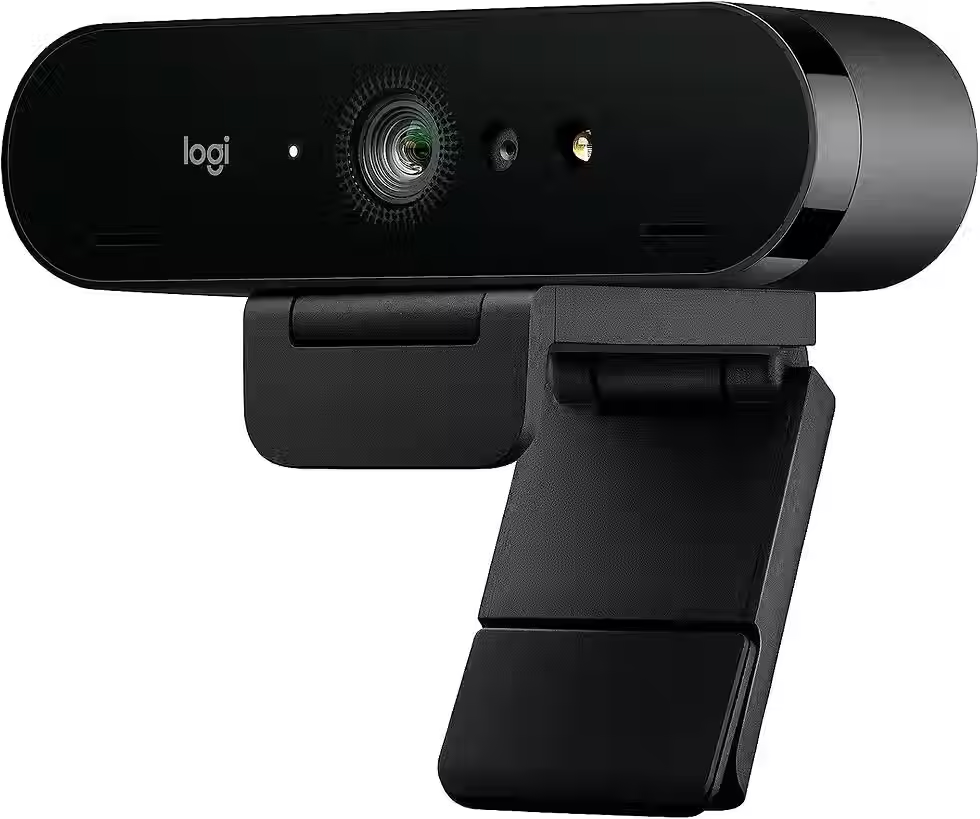
Want to give your OBS setup a visual upgrade? The Logitech BRIO 4K Webcam delivers 4K video at 30 fps or 1080p at 60 fps, along with autofocus and automatic light correction for a cleaner, more polished stream.
As an Amazon Associate, I earn from qualifying purchases.
How Do I Check for OBS Updates and Current Issues?
In OBS Studio, you can manually check from:
Help → Check for Updates
Before a major update, read the release information. Pay particular attention to changes involving plugins, encoders, operating-system support or capture methods that affect your setup.
The same applies when searching for "the latest OBS update issues." Those problems are version-specific. An issue affecting one release may already be fixed in the next patch, and somebody else's disastrous update could involve a plugin, graphics card or operating system you don't use.
If OBS starts crashing or shutting down immediately after an update, start with what changed. Check important third-party plugins, drivers, capture devices, scripts and integrations for compatibility before assuming the entire OBS release is broken.
If the update seems to have affected a specific source, troubleshoot that problem separately. For example, see how to fix OBS Window Capture if an application suddenly stops appearing, or how to fix a capture card that OBS isn’t detecting if your external video source disappears.
What Is the Most Stable Version of OBS?
There isn't one universally "best" OBS version for everybody.
The most stable version for your setup is a current, supported version that works reliably with your operating system, hardware and the plugins you actually use.
That's why one streamer can happily install the newest release while another intentionally stays one version behind. Their setups aren't identical.
The same goes for performance. OBS can use both your CPU and GPU depending on your encoder, scenes, sources, filters and resolution, but updating doesn't automatically make a demanding setup lightweight. High CPU or GPU usage should be troubleshot separately rather than assuming a different OBS version will solve it.
So, Should You Update OBS or Leave It Alone?
I don't subscribe to the idea that streamers should never update OBS. Once you have a complicated streaming setup working perfectly, I understand why touching anything can feel like walking into a room full of dominoes.
But refusing to update indefinitely can eventually create compatibility problems of its own.
My approach is to update deliberately instead of fearfully.
Back up your Scene Collections and Profiles. Check the plugins your setup depends on. Know which OBS version currently works for you. Read the important release notes. Then update when you have enough time to test everything afterward.
And please, for the love of your carefully constructed stream setup, don't see an OBS update notification eight minutes before you're supposed to go live and decide that's the perfect time to see what happens.
OBS will still be there after the stream.
Related OBS Guides
Keep building and troubleshooting your setup with these OBS guides:
Tired of digging through OBS menus while you're live? An Elgato Stream Deck puts your scenes, audio, transitions and other controls right at your fingertips.

Affiliate disclosure: As an Amazon Associate, I may earn from qualifying purchases.

Comments