How to Rearrange Pages in Canva on Desktop and Mobile


If you work on larger projects in Canva, eventually you’re going to put a page in the wrong place.
I run into this when I’m designing workbooks, books, presentations, calendars, and stream overlay packs. You might finish a slide and realize it belongs three pages earlier, or decide an entire section would make more sense somewhere else.
Fortunately, you don’t have to recreate anything. Canva lets you rearrange, reorder, and move pages by simply dragging them into a new position. There are a couple of easy ways to do it on desktop, and you can reorder pages on mobile too.
How to Rearrange Pages in Canva on Desktop
The easiest way to rearrange pages in Canva, especially in a large project, is to use Grid View.
Method 1: Rearrange Pages Using Grid View
Open your Canva design.
Look at the controls in the bottom-right corner of the Canva editor.
Click Grid View, represented by four small squares.
Canva will display thumbnails of all the pages in your design at once.
Click and hold the page you want to move.
Drag it to its new position.
Release your mouse button to drop the page into place.
Canva automatically updates the page order.
Grid View is especially useful for projects with lots of pages because you get a bird’s-eye view of the entire document. If you’re working on a presentation, workbook, book, calendar, or another project that needs to be viewed sequentially, this makes it much easier to see where everything belongs.
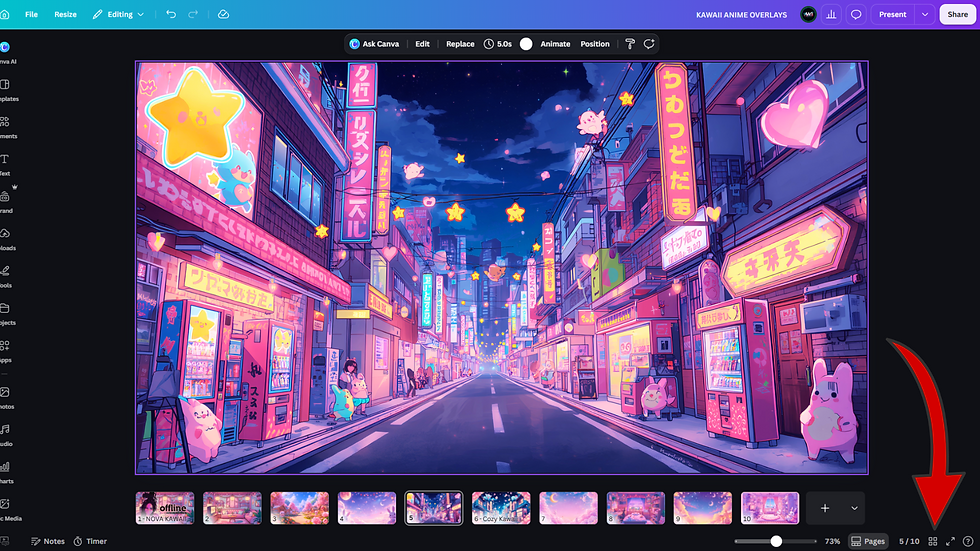

How to Move Pages in Canva Using Thumbnail View
You don't have to open Grid View every time you want to move a page.
You can also reorder Canva pages directly from Thumbnail View.
Open your Canva design.
Make sure your page thumbnails are visible.
Find the thumbnail of the page you want to move.
Click and hold the page.
Drag it left or right to its new location.
Release it when it reaches the position you want.
For moving a page only one or two positions, I usually find this method faster. For a document with dozens of pages, Grid View makes it much easier to see what you're doing.

How to Reorder Pages in Canva on Mobile
You can also rearrange pages in the Canva mobile app.
Open your design in the Canva app.
Open the page or thumbnail view so you can see the pages in your design.
Press and hold the page you want to move.
Drag the page to the position where you want it to appear.
Release it to place it in the new location.
If you're working with a large Canva project on your phone or tablet, viewing your page thumbnails can make reordering pages much easier than trying to navigate through the design one page at a time.
What Is the Fastest Way to Reorder Pages in Canva?
For small changes, Thumbnail View is usually the fastest way to move a page in Canva. Just grab the page thumbnail and drag it where you want it.
For larger projects, Grid View is usually better because you can see many or all of your pages at once.
Either way, you don't have to delete, duplicate, or rebuild a page just because it's in the wrong place. Grab it, move it, drop it, and Canva takes care of the new page order.


Comments