How to Resize in Canva Without Starting Your Design Over (With Screenshots)

Updated: Oct 2

As a longtime graphic designer who has been using Canva since its early days, I have to say that Resize is easily one of my favorite and most useful Canva features.
We live in a world where nearly everyone is creating and repurposing content in some form. And if you’re making graphics for more than one platform, you’ve probably already run into the problem: the design looks great, but the canvas is the wrong shape.
As a streamer, I deal with this all the time. I might create a vertical 9:16 flyer at 1080 x 1920 pixels because I want to share it on a phone-first platform. But I may also need that exact same information displayed on a 16:9 screen during a livestream, where something like 1920 x 1080 makes much more sense.
And sometimes I need a square version, too.
Nobody wants to rebuild the same flyer three times.
That's where Canva's Resize feature comes in.
Instead of starting over, Resize lets you take the elements you've already created and move them onto a differently sized canvas. Canva will even attempt to rearrange and resize those elements to fit the new dimensions, giving you a head start on the new version.
How Do You Resize a Design in Canva?
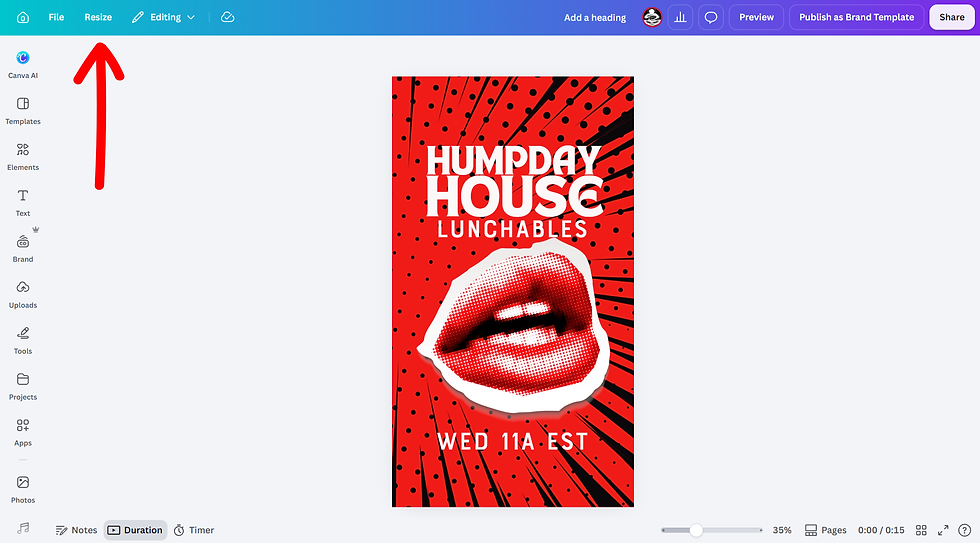
Open up Canva and open op the design you want to resize. Click "Resize" at the top of the editor.
Choose one of Canva's suggested sizes or enter your own custom dimensions.
Canva provides preset dimensions for common formats, so you don't necessarily need to memorize the correct pixel dimensions for every type of content you're creating. You can select the format you need or enter custom dimensions when you already know exactly what size you're after. Canva's resizing tools support both preset sizes and custom dimensions.
This becomes especially useful when you're repurposing one design across several places.
One collection of text, images, logos and other elements can become a vertical graphic, widescreen graphic, square post or another custom format without recreating every version from zero.

Choose Resize to change your existing design, or "Copy & Resize" to create a new resized version while keeping your original intact.

That's it. Your painstakingly assembled design does not have to go into the recycling bin just because you suddenly need it in a different shape.
Click "Open Presentation" to access your resized design.

Will Canva Automatically Rearrange Everything When I Resize?
It will certainly try. But you will most likely need to do some rearranging to optimize your design on the new canvas.
When you move from one aspect ratio to another, Canva attempts to reposition your existing elements for the new canvas. But there is an important distinction here: resizing a design isn't always the same thing as simply making everything bigger or smaller.

If you're turning a tall 9:16 design into a wide 16:9 design, the entire composition has changed. Text that worked beautifully stacked vertically might work better across the screen. A photograph may need to be repositioned. Your logo might need to move.
Think of Canva's automatic resizing as doing the heavy lifting, not necessarily making every final design decision for you.
That's still considerably faster than rebuilding the entire graphic from scratch.
How To Save Your Newly Rearranged Design
Click the "Share" button in the upper right hand corner

Click the "Download" button to access the Download Menu.

Select your desired "File Type" (PNG, MP4, GIF, etc.).

Download your design to your desired destination on your device.
How Do You Make a Canva Design Bigger or Smaller Without Changing Its Shape?
There's another type of resizing that's worth knowing about.
Sometimes the canvas isn't the problem at all. You already have the correct aspect ratio. You simply need the exported image to be larger or smaller.
When you select Share > Download, Canva provides additional export controls depending on the file type and your Canva plan. For supported formats, these can include controls for scale, quality, compression and file-size limits. Canva currently lists quality, scale, compression and file-size export limits among the export options available with its premium plans.
This can be extremely useful when you're creating graphics that have to meet specific upload requirements. Instead of redesigning the graphic, you can adjust the exported version while maintaining its proportions.
That's a different job from changing a vertical design into a horizontal one, but Canva gives you tools for both.
Use the Sizing Slider to resize your design while retaining the aspect ratio.

Resize Once, Repurpose Everywhere
For me, that's what makes Canva's resizing tools so useful.
I'm rarely creating something with the expectation that it will live in only one place. A graphic might need to become a social post, a vertical flyer, a widescreen graphic for a stream, a website image or something else entirely.
The canvas needs to change. The entire design doesn't.
Once you get comfortable using Resize, repurposing your work becomes much less tedious. Instead of rebuilding the same graphic every time you encounter a new set of dimensions, you can resize what you've already made, make a few adjustments and keep it moving.
Take Your Canva Designs Beyond the Mouse
Want more hands-on control when creating graphics, illustrations, and other visual content? The UGEE UT3 14.25" Standalone Drawing Tablet gives creators a large 2.4K drawing surface and U-Pencil for sketching, drawing, and designing directly on screen.

As an Amazon Associate, I earn from qualifying purchases.


Comments