How to Change Your Twitch Stream Title and Category

Updated: Sep 16

We’ve all done it. You go live on Twitch and realize you forgot to change your stream title, or you’re new to Twitch and aren’t quite sure where to set it in the first place.
Your Twitch title and category are both important because they help people understand what you’re streaming and help Twitch place your stream in the right part of the platform. Your category tells Twitch what type of content you’re streaming, such as a specific game, Just Chatting, Music, or Art. Your title gives viewers more context about what you’re actually doing during that stream.
When I first started using Twitch, one of the main ways I found new people to watch was by browsing categories I was interested in and seeing who was live. Plenty of viewers still use Twitch that way, so setting the right category can help put your stream in front of people who don’t already follow you.
The good news is that you can change your Twitch title and category before you go live or while you’re already streaming.
How to Change Your Twitch Stream Title and Category From the Creator Dashboard
The easiest method is directly through Twitch.
Log into Twitch.
Click your profile picture in the upper-right corner.
Select Creator Dashboard.
Open Stream Manager.
Find Edit Stream Info in your Quick Actions.
Enter your new stream title.
Search for and select the correct category.
Click Done.
You can change this information while you’re live, so if you switch games or realize you left yesterday’s title up, you do not have to stop your stream.
How to Change Your Twitch Title and Category in OBS
If your Twitch account is connected directly to OBS Studio, you can also update your stream information without opening Twitch in a browser.
Open OBS and look for the Stream Information dock.
If you don’t see it, go to:
Docks → Stream Information
From there, you can change your title and select your Twitch category, then click Update Information.
This is especially convenient if you already have OBS open and don’t want to bounce between multiple windows while streaming.
How to Change Your Twitch Stream Title and Category on Mobile
You can also update your stream information from your phone through the Twitch app.
Open Twitch, access your creator or stream-management controls, and edit your stream information from there. You can update both the title and category without needing to be at your computer.
The exact placement of these controls can move around as Twitch updates its mobile app, but look for your creator or stream-management options rather than your general account settings.
How to Change a Twitch Title or Category With a Chat Command
If you use a chatbot such as StreamElements, you can make the process even faster.
With StreamElements, the commands are:
Change your title:
!settitle Your New Stream Title
Change your category:
!setgame Game or Category Name
StreamElements allows streamers and properly permissioned moderators to use these commands, which means a trusted mod can update your information for you while you concentrate on the stream.
Can You Change Your Twitch Title or Category While Live?
Yes. You can change both your Twitch title and category while you are already live.
This is useful if you change games, move from Just Chatting into another category, change the focus of the stream, or simply notice that you forgot to update your information before going live.
Keeping your category accurate gives Twitch a better idea of where your stream belongs, while a clear title gives potential viewers a better reason to click when they find you.
Make Twitch Stream Management Even Easier
If you’re constantly changing titles, categories, scenes, alerts, or other stream settings while you’re live, a Stream Deck can make the whole process much faster. Instead of clicking through multiple windows and menus, you can assign frequently used streaming actions to physical buttons and keep important controls right at your fingertips.
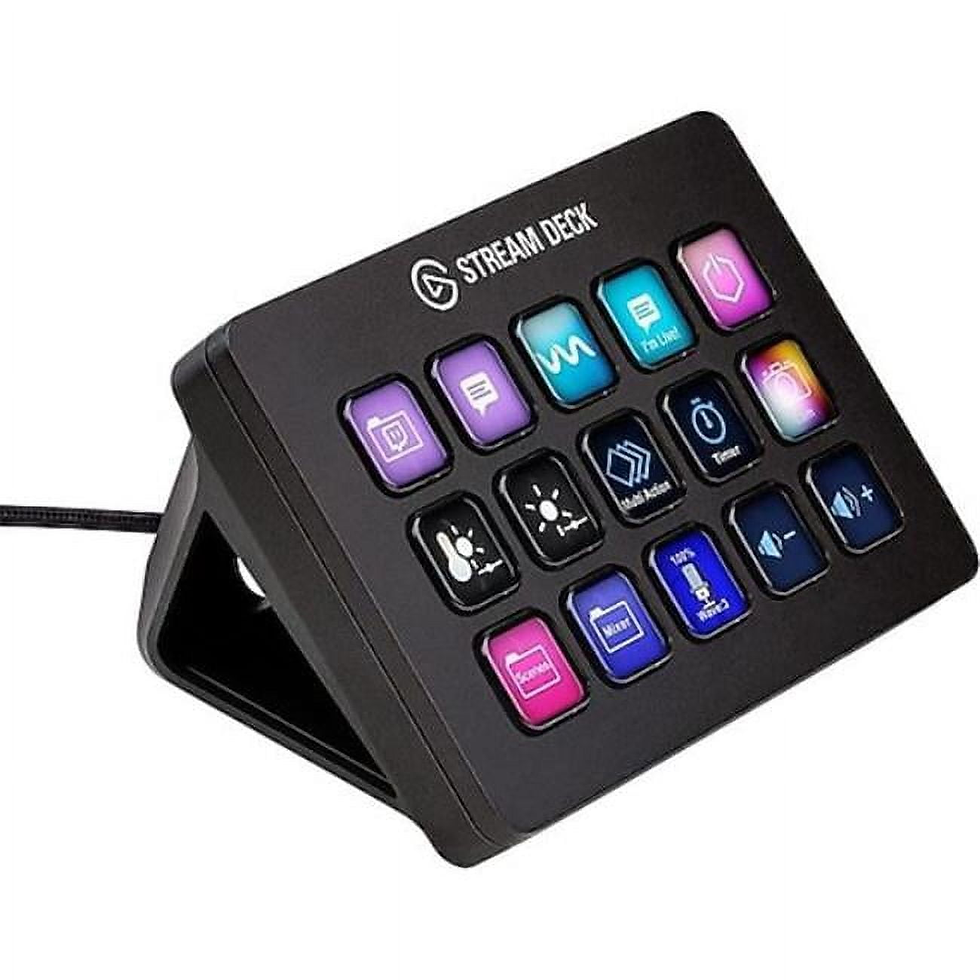
As an Amazon Associate, I earn from qualifying purchases.



Comments